



Recent Articles
Training
Custom Panel Tool - Complete Guide
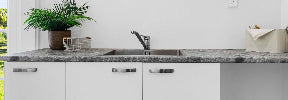
Custom Panel Tool – Complete Guide This guide shows you how to order custom panels using the Cabjaks custom panel tool. You can click on any of the images in this guide to enlarge them. 1 Open the custom panel tool Hover over 'Our Products' in the navigation bar. Then locate the 'Custom Panels' page under 'Panels and Fronts' 2 Enter your measurements Enter the length and width requirements for your panel. Usually, the 'length' would refer to the height of the front and the 'width' would refer to the measurement from left to right. Note: Measurements entered should...
Colour Refresh Tool - Complete Guide
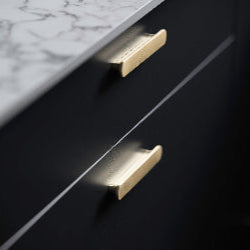
Colour Refresh Tool - Complete Guide This guide shows you how to order standard fronts and panels using the Cabjaks Colour Refresh Tool. You can click on any of the images in this guide to enlarge them. 1 Open the Colour Refresh Tool Navigate to the Colour Refresh Tool. In the first step, we have some provided some information regarding designing with colour. Once you have reviewed this stage, tick the 2 boxes and click 'continue'. 2 Choose your colour Decide on the colour you would like to plan your refresh in. 3 Select fronts for your cabinets with...
Wardrobe Planner - Complete Guide
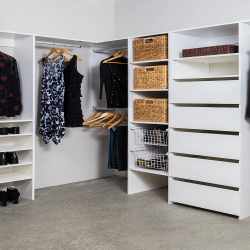
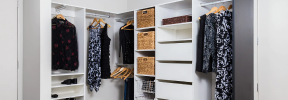
Wardrobe Planner - Complete Guide This guide will show you how to design your wardrobe using the Cabjaks Planner, from creating your room layout to saving a complete, ready-to-order design. You can click on any of the images in this guide to enlarge them. 1 Create a new plan Open the wardrobe planner and click create new plan. Enter the width and height of your wardrobe space. The planner works in front view, so each wall must be planned separately. Tip: For walk-in or multi-wall wardrobes, create a separate plan for each wall. Sketch a simple birds-eye view first...
Kitchen Planner - Complete Guide
Kitchen Planner - Complete Guide This guide will show you how to design your kitchen using the Cabjaks Planner, from creating your room layout to saving a complete, ready-to-order design. You can click on any of the images in this guide to enlarge them. 1 Create a new plan Open the kitchen planner and click create new plan. Enter your room size measurements, then choose the colour you'd like to plan in. You can only have 1 colour in your cart at any one time so you may need to save and clear your cart before starting a new...